
A practical guide to exporting Sales Navigator leads to Excel — the free manual method, paid tools, cleaning and enrichment, and turning the list into outreach.
LinkedIn Sales Navigator is where many exporters find their buyers. It lets you search by industry, company size, location and job title, and build lists of the importers, distributors and purchase managers who buy your product. The problem comes next: getting those leads out of LinkedIn and into a spreadsheet you can actually work from. This guide explains how to export leads from Sales Navigator to Excel, free and paid, what LinkedIn allows, and how to turn the list into real export enquiries.
Why exporters need leads in Excel
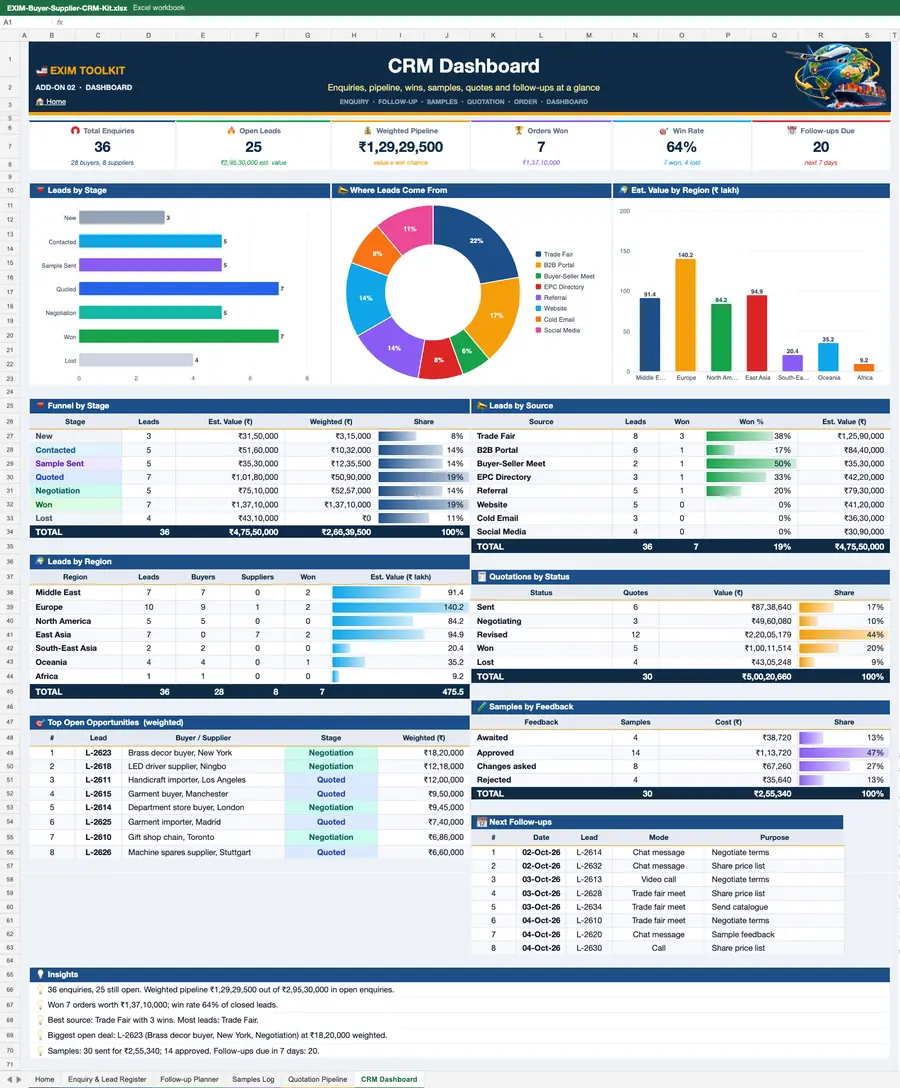
A lead is only useful if you can follow it up. Inside Sales Navigator, a saved lead is just a profile in a list. In Excel, it becomes a working asset: you can add the company, the product they buy, the HS code, the country, the contact's role, the date you contacted them and the reply you received. You can sort the list by priority, filter it by market, and import it into a CRM so that no lead is forgotten.
Excel also makes teamwork possible. One person can research buyers, another can write to them, and a manager can see at a glance who has been contacted and who has replied. Without a spreadsheet, follow-up depends on memory, and memory fails. Exporters who keep a clean, up-to-date lead sheet usually convert more enquiries into orders, because they contact the right people, at the right time, with the right product information.
What Sales Navigator can and cannot export
Here is the fact that surprises most new users: Sales Navigator has no official export button for lead lists. LinkedIn does not offer a built-in way to download a list of leads or accounts to Excel or CSV. You can save leads, save accounts, create lists and take notes inside the tool, but there is no "Export to Excel" option in the standard interface.
That limit is deliberate. LinkedIn's terms restrict automated scraping and bulk data extraction, and the platform is designed to keep activity inside LinkedIn. There are some partial workarounds inside the product: you can view your saved leads and accounts, you can use the CRM sync features if your plan supports them, and some Sales Navigator plans integrate with CRMs such as Salesforce and HubSpot. Those integrations can move lead data into your CRM, from where you can usually export it to Excel. Check what your plan includes before you assume it will work.
Be careful about tools that promise a one-click export. Some browser extensions and third-party tools do extract data from Sales Navigator, but using them can breach LinkedIn's terms and can put your account at risk, including temporary restrictions. Never use a tool that asks for your LinkedIn password, and never scrape at a volume that looks automated. The methods below keep you on the safer side: manual export, official CRM sync, and reputable tools used within their stated limits.
The free method: manual list building and copy-paste
The free method is slow but reliable, and it works on any plan. Start by building a focused search in Sales Navigator: choose the industry, the company size, the geography and the job titles that match your buyer, such as "Import Manager", "Procurement Manager" or "Purchasing Director". Save the search so you can return to it, and save the leads that match your product.
Then build your spreadsheet. Create columns for name, job title, company, country, LinkedIn profile URL, email (only if you have a legitimate source), product interest, HS code, company size, date added, contact status and notes. Work through your saved leads in batches of 20 to 30, copying the name, title, company and profile link into the sheet. Do not copy large blocks at once; LinkedIn may show a verification check if you move too fast.
Add value as you go. For each company, note what they import and which product of yours fits. A short note such as "imports ceramic tiles, 20+ shipments a year" is far more useful than a bare name. When the sheet is complete, sort it by priority and start with the best matches. This method takes time, but it forces you to qualify every lead, and a qualified list of 50 buyers beats an unqualified list of 500.
Paid tools and extensions: how they work, costs and risks
Paid tools and browser extensions automate the copy-paste step. They usually work by reading the lead list page in your browser and saving the visible data — name, title, company and profile link — into a CSV or Excel file, or by sending it to a CRM. Some also enrich the data, for example by finding a work email or adding company information. Typical pricing is a monthly subscription, with the cost rising with the number of leads you export; treat any price you see as indicative and verify it live on the tool's own pricing page before you pay.
Before you choose a tool, check three things. First, does it work with your Sales Navigator plan and your browser? Second, does it respect LinkedIn's limits — for example, by exporting only the leads you have viewed, at a human pace, rather than scraping thousands at once? Third, where does your data go, and how is it stored? A tool that uploads your leads to an unknown server is a data risk. Read recent reviews, try a small export first, and stop using any tool that triggers LinkedIn warnings or asks for your password. The safest paid route is usually the official CRM integration: if your plan supports syncing Sales Navigator with Salesforce or HubSpot, use it, and export from the CRM to Excel.
Cleaning and enriching the sheet
An exported sheet is rarely ready to use. Start by removing duplicates: the same person may appear twice if they changed jobs, and the same company may appear under two spellings. Use Excel's "Remove Duplicates" feature on the profile URL, which is the most reliable identifier, then check company names by hand.
Next, verify the data. Check that each person still holds the job title shown, that the company still imports your product, and that any email address you have is current and obtained legitimately. Add the information that makes the sheet useful for exporting: the HS code for the product they buy, the country, the likely order size, and the source of the lead. Drop leads that no longer match — a contact who has left the company, a company that has stopped importing, or a profile with no clear connection to your product. A clean list of 100 verified buyers will outperform a messy list of 1,000.
Turning the list into outreach
A list is only the start. Work it in sequence: first, send a short, specific message to each buyer, naming their market and the product you can supply, with a spec sheet or catalogue attached. Follow up once after a week if there is no reply, and once more after another week. After three useful contacts with no response, move the lead to a later follow-up date rather than deleting it; buying cycles change, and a buyer who is not interested today may be sourcing in three months.
Track every step in the sheet: the date of each message, the reply, the sample request and the quote. Review the sheet weekly and prioritise buyers who replied, asked for a sample or requested a price. And remember that Sales Navigator is only one source of buyers. Combine it with trade data, importer directories and live requirements from buyers who are already looking.
If you want buyers who are already looking, browse the TodayAdviser buyer directory to search importers by product and country, and post a requirement (RFQ) on TodayAdviser so verified buyers can respond directly to your offer. A directory search plus a live requirement reaches buyers who are actively sourcing, which is a better use of time than cold outreach alone.
Frequently asked questions
Can I export leads from Sales Navigator to Excel for free?
Yes, by building your list manually: save leads in Sales Navigator, then copy the name, title, company and profile link into Excel in batches of 20 to 30. There is no official free export button, so the manual method is the reliable free route.
Does Sales Navigator have an export button?
No. LinkedIn does not provide a built-in export to Excel or CSV for lead lists. Some plans offer CRM sync with tools such as Salesforce or HubSpot, from which you can usually export to Excel.
Are lead export tools safe to use?
Reputable tools that export only the leads you have viewed, at a human pace, are lower risk, but any automation can breach LinkedIn's terms. Never share your LinkedIn password, start with a small export, and stop if LinkedIn shows a warning or restricts your account.
How do I clean a lead list in Excel?
Remove duplicates using the LinkedIn profile URL, verify job titles and companies, drop leads that no longer match, and add the HS code, country and product interest for each buyer. A clean list of 100 verified buyers beats a messy list of 1,000.
What should I add to a lead sheet for exporting?
Name, title, company, country, profile URL, product interest, HS code, likely order size, contact status and notes. That turns a list of names into a follow-up plan.
Where can I find buyers who are already looking?
Search the TodayAdviser buyer directory by product and country, and post a requirement (RFQ) on TodayAdviser so verified buyers can respond directly to your offer.